This is an addon to my previous post, “Natural Language Processing in Clojure with clojure-opennlp“. If you’re unfamiliar with NLP or the clojure-opennlp library, please read the previous post first.
In that post, I told you I was going to use clojure-opennlp to enhance a searching engine, so, let’s start with the problem!
The Problem
(Ideas first, code coming later. Be patient.)
So, let’s say you have a sentence:
“The override system is meant to deactivate the accelerator when the brake pedal is pressed.”
I took this sentence out of a NYTimes article talking about the recent Toyota recalls, just pretend it’s an interesting sentence.
Let’s say that you wanted to search for things containing the word “brake“; well, that’s easy for a computer to do right? But, let’s say you want to search for things around the word “brake“, wouldn’t that make the search better? You would be able to find a lot more articles/pages/books/whatever you might be interested in, instead of ones that only contained the word key word.
So, in a naïve (for a computer) pass for words around the key word, we can come up with this:
“The override system is meant to deactivate the accelerator when the brake pedal is pressed.”
Right. Well. That really isn’t helpful, it’s not like the words “when”, “the” or “is” are going to help us find other things related to this topic. We got lucky with “pedal”, that will definitely help find things that are interesting, but might not actually have the word brake in them.
What we really need, is something that can pick words out of the sentence that we can also search for. Almost any human could do this trivially, so here’s what I’d probably pick:
“The override system is meant to deactivate the accelerator when the brake pedal is pressed.”
See the words in red? Those are the important terms I’d probably search for if I were trying to find more information about this topic. Notice anything special about them? Turns out, they’re all nouns or verbs. This is where the NLP (Natural Language Processing) comes into play for this, given a sentence like the above, we can categorize it into it’s parts by doing what’s called POS-Tagging (POS == Parts Of Speech):
[“The” “DT”] [“override” “NN”] [“system” “NN”] [“is” “VBZ”] [“meant” “VBN”] [“to” “TO”] [“deactivate” “VB”] [“the” “DT”] [“accelerator” “NN”] [“when” “WRB”] [“the” “DT”] [“brake” “NN”] [“pedal” “NN”] [“is” “VBZ”] [“pressed” “VBN”] [“.” “.”]
So next to each word, we can see what part of speech that word belongs to. Things starting with “NN” are nouns, things starting with “VB” are verbs. Doing this is non-trivial. (A full list of tags can be found here). That’s why there are software libraries written by people smarter than me for doing this sort of thing (*cough* opennlp *cough*). I’m just writing the Clojure wrappers for the library.
Anyway, back to the problem, so what I need to do is strip out all the non-noun and non-verb words in the sentence, that leaves us with this:
[“override” “NN”] [“system” “NN”] [“is” “VBZ”] [“meant” “VBN”] [“deactivate” “VB”] [“accelerator” “NN”] [“brake” “NN”] [“pedal” “NN”] [“is” “VBZ”] [“pressed” “VBN”]
We’re getting closer, right? Now, searching for things like “is” probably won’t help, so let’s strip out all the words with less than 3 characters:
[“override” “NN”] [“system” “NN”] [“meant” “VBN”] [“deactivate” “VB”] [“accelerator” “NN”] [“brake” “NN”] [“pedal” “NN”] [“pressed” “VBN”]
Now we get to a point where we have to make some kind of decision about what terms to use, for this project, I decided to weight the terms that were nearer to the original search term, only taking two of the closest words in each direction, after scoring this sentence you get:
[“override” 0] [“system” 0] [“meant” 0] [“deactivate” 0.25] [“accelerator” 0.5] [“brake” 1] [“pedal” 0.5] [“pressed” 0.25]
The red next to each word indicates how heavily we’ll weight each word when we use it for subsequent searches. The score is divided by 2 for each unit of distance away from the original key term. Not perfect, but it works pretty well.
That was pretty easy to follow, right? Now imagine having a large body of text, and a term. First you’d generate a list of key words from sentences directly containing the term, score them each and store them in a big map. On a second pass, you can start scoring each sentence by using the map of words => scores you’ve already built. In this way, you can then rank sentences, including those that don’t even contain the actual word you’ve searched for, but are still relevant to the original term. Now, my friend, you have context searching.
Congratulations, that was a really long explanation. It ended up being a bit more like pseudocode, right? (or at least an idea of how to construct a program). Hopefully after understand the previous explanation, the code should be easy to read.
The Code
(note: this is very rough code, I know it’s not entirely idiomatic and has a ton of room for enhancement and parallelization, feel free to suggest improvements in the comments however!)
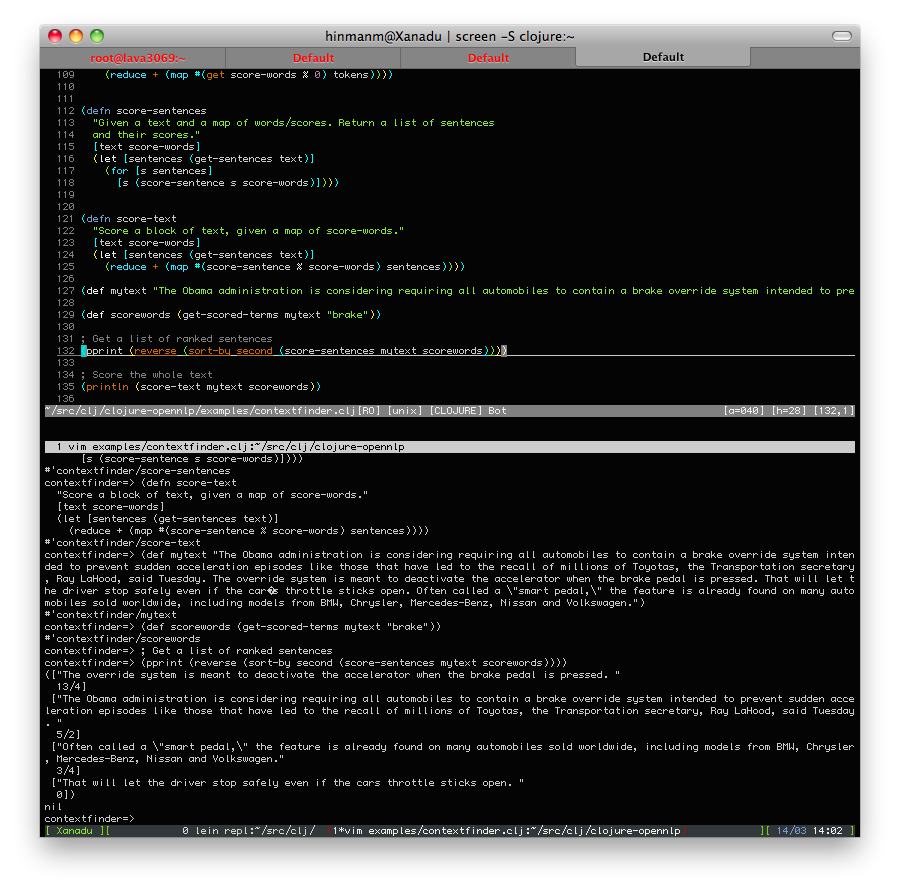
The most important functions to check out are (score-words [term words]) method, which returns a list of vectors of words and their score, and the (get-scored-terms ) method, which returns a map of words as keys and scores as values for the entire text, given the initial term.
Here’s the output from the last few lines:
contextfinder=> (pprint (reverse (sort-by second (score-sentences mytext scorewords))))

(["The override system is meant to deactivate the accelerator when the brake pedal is pressed. " 13/4]

["The Obama administration is considering requiring all automobiles to contain a brake override system intended to prevent sudden acceleration episodes like those that have led to the recall of millions of Toyotas, the Transportation secretary, Ray LaHood, said Tuesday. " 5/2]

["Often called a \"smart pedal,\" the feature is already found on many automobiles sold worldwide, including models from BMW, Chrysler, Mercedes-Benz, Nissan and Volkswagen." 3/4]

["That will let the driver stop safely even if the cars throttle sticks open. " 0])
I highlighted the score for each sentence in red, see how sentences such as the third in the list have a score, but don’t contain the word “brake”? Those would have been missed entirely without this kind of searching.
contextfinder=> (println (score-text mytext scorewords))

13/2
Score a whole block of text, self-explanatory.
Anyway, I’ve already spent hours writing the explanation for why you’d want to do this sort of searching, so I think I’ll save the explanation of the code for another post. Hopefully it’s clear enough to stand on its own. If you find this interesting, I encourage you to check out the clojure-opennlp bindings and start building other cool linguistic tools!